
Arrange windows side by side with a tiling menu
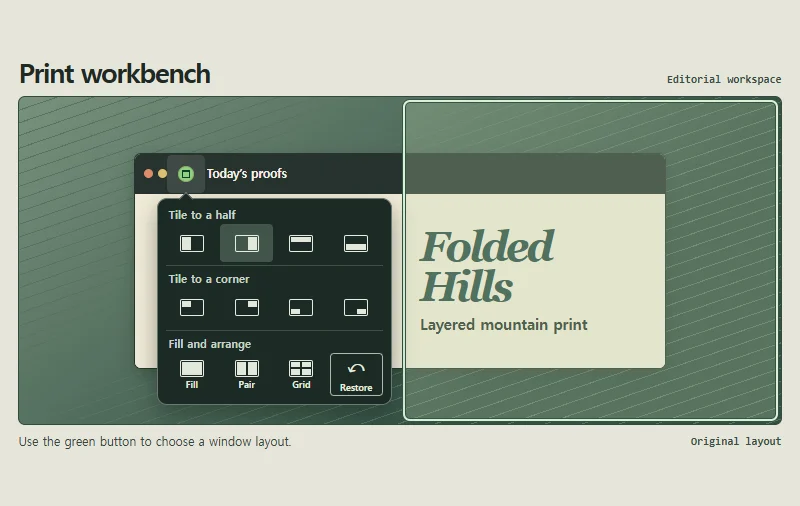
Place a print proof beside the production notes you need to edit it. The green window button opens a tiling menu that arranges documents within the workspace.
 Try the motion
When to use it
Keep related documents in view while editing a manuscript, reading notes or comparing proofs.
How the motion works
Half and quarter tiles position the active window. The two- and four-window layouts bring other documents into the arrangement. Choose Restore in the menu to return to the original layout.
How to use it
- Touch
- Tap the green button in the web example and choose the side-by-side layout. Reopen the menu to compare it with a half tile or four windows.
- Mouse and keyboard
- Click the green button or hover briefly to open the menu. Hover or move keyboard focus to a tile to preview its position. Press Enter to apply the layout or Escape to close the menu.
Example files and implementation notes
Choose a device in the demo and save the motion to your collection to download the working HTML and implementation notes as a ZIP.