
Open artwork details in a drawer
A sliding panel reveals details for the artwork you select in the list.
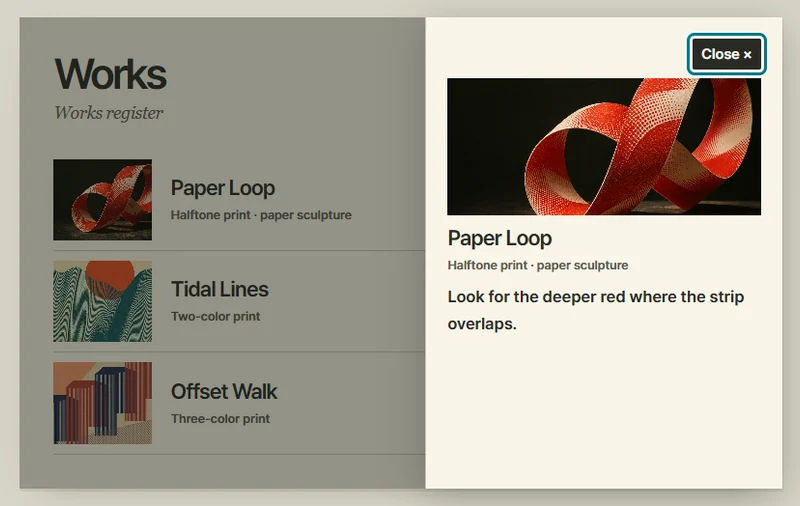 Try the motion
When to use it
Looking up details while keeping your place in a catalog.
How the motion works
- iOS
- Slide up a rounded sheet with a large view of the selected artwork. Block the list while open. Dismiss with a downward drag, the close button, the backdrop, or Escape. Return focus to the selected row. Open immediately with reduced motion.
- Android
- Open a bottom sheet with the artwork and notes side by side. Block the list while open. Dismiss with a downward drag, the close button, the backdrop, or Escape. Return focus to the selected row. Open immediately with reduced motion.
- PC
- On desktop, the panel enters from the right over 330ms. It spans 75% of the list width, up to 370px. Dim and block the list while open, then focus the close button. Closing with the button, backdrop, or Escape restores focus to the selected row. With reduced motion, open immediately.
How to use it
- iOS · Android
- Tap a record to open the artwork sheet from below. Drag its handle down or use the close button.
- PC
- Open a record from any of the three rows and close it to return to that row.
Example files and implementation notes
Choose a device in the demo and save the motion to your collection to download the working HTML and implementation notes as a ZIP.