
Pan and zoom around a point on a map
Find the print shop on the riverside map and zoom in. The map stays anchored to the point under your pointer or between your fingers as the surrounding streets come into view.
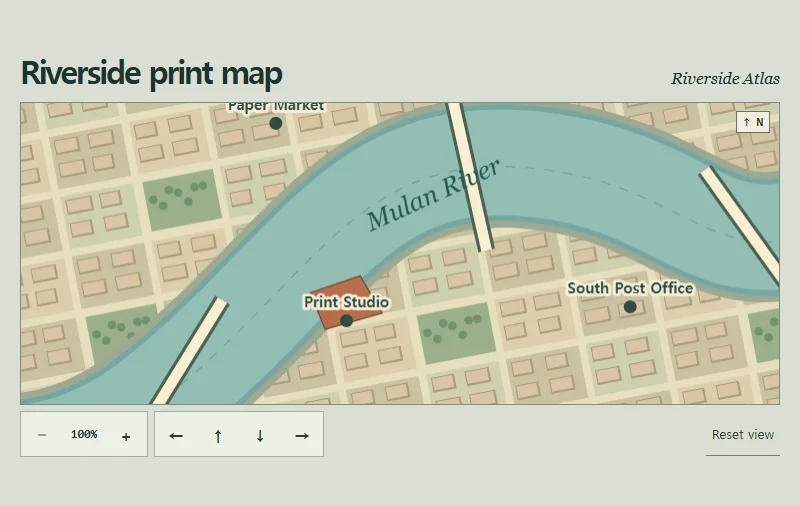 Try the motion
When to use it
A map, floor plan or large image often needs both a broad view for orientation and a close view for detail.
How the motion works
Zoom ranges from 100% to 400%. A pinch zooms around the midpoint between your fingers. Turning the wheel zooms around the pointer. Reset view restores both the starting position and scale.
How to use it
- Touch
- Drag with one finger to pan. Spread two fingers to zoom in. The direction and zoom buttons below the map also work with a single tap.
- Mouse and keyboard
- Drag to pan or point at a landmark and turn the wheel. With keyboard focus on the map, use the arrow keys to pan and the plus and minus keys to zoom.
Example files and implementation notes
Choose a device in the demo and save the motion to your collection to download the working HTML and implementation notes as a ZIP.